A business card doesn’t have much space, but it can still do more than display a name, phone number, and email address.
Adding a QR code gives people a quick way to visit your website, portfolio, LinkedIn profile, contact page, or digital business card. Instead of typing a long web address into their phone, they can simply scan the code.
For designers, freelancers, photographers, consultants, agencies, and small businesses, a QR code can also be made part of the card’s visual design rather than looking like an unrelated black square.
Here’s how to create one that works well both digitally and in print.
Decide What the QR Code Should Open
The first step is deciding where you want the QR code to send people.
For a personal business card, you could link to:
- Your portfolio
- Personal website
- LinkedIn profile
- Digital business card
- Contact page
- Online resume
- Booking page
- Social media profile
For a company, the QR code might point to the company website, product page, contact page, or a specific service.
Try to choose one useful destination instead of sending people to a page filled with unrelated links.
If you have a personal website, a dedicated contact or profile page can be particularly useful because you can update the information behind the QR code later without needing to redesign the printed card.
Generate the QR Code
Once you have your destination URL, you can turn it into a QR code using a QR code generator with logo.
Enter the URL, generate the code, and then decide how much customization you actually need.
For a business card, simple is usually better.
You can use your brand colors, add a small logo, or adjust the visual style while keeping the QR code easy to recognize.
Add Your Logo
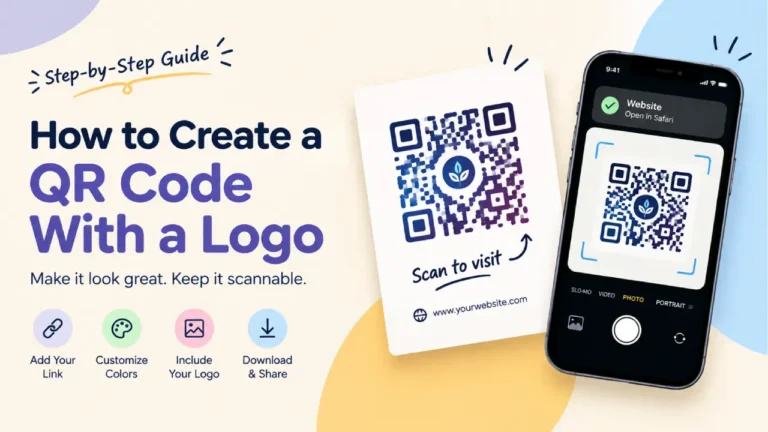
A logo in the middle of a QR code can make it feel more connected to the rest of your business card.
For example, a photographer could use their brand mark, while a design studio could place its symbol in the center of the code.
QR Codes have built-in error correction, which allows some damaged or obscured data to be restored. There are four error correction levels, and increasing the level also increases the amount of additional data in the code.
However, error correction shouldn’t be treated as permission to cover a large part of the QR code.
Keep the logo reasonably small and test the finished design before sending it to print.
Match the QR Code to Your Brand
A business card is a branding piece, so the QR code doesn’t necessarily need to remain plain black and white.
You can use a brand color for the darker elements as long as there is sufficient contrast against the background.
For example, a dark navy QR code on a white card can look more intentional than a default black code. A dark green code could work well for a nature-focused brand, while a dark red or purple code might fit another visual identity.
Be careful with very light colors.
A QR code made from pale gray on a white background may look elegant in a design file but can be much harder for a phone camera to identify.
Leave Space Around the QR Code
One of the easiest mistakes is placing text or graphic elements too close to the QR code.
QR Codes require a clear margin around the symbol, known as the quiet zone. The QR Code specification calls for a margin four modules wide on all sides.
That means your business card shouldn’t have the website address, decorative border, or another graphic touching the QR code.
Give it some breathing room.
This also makes the QR code look cleaner as a design element.
Don’t Make the QR Code Too Small
Business cards are small, so there is always a temptation to make everything fit by shrinking the QR code.
Avoid making it tiny just to preserve space for another decorative element.
The actual size you need depends on the amount of information encoded, the printing process, viewing conditions, and the distance from which someone will scan it.
The best way to find the right size for your design is to print a test card at the actual dimensions.
Put the card on a desk or hand it to someone and try scanning it normally.
If you have to move the phone around several times before it works, give the QR code more space.
Consider the Background
A plain background is usually the easiest option.
If your business card uses a photograph, illustration, gradient, or texture, don’t place the QR code directly over a busy section.
Instead, create a simple area behind it.
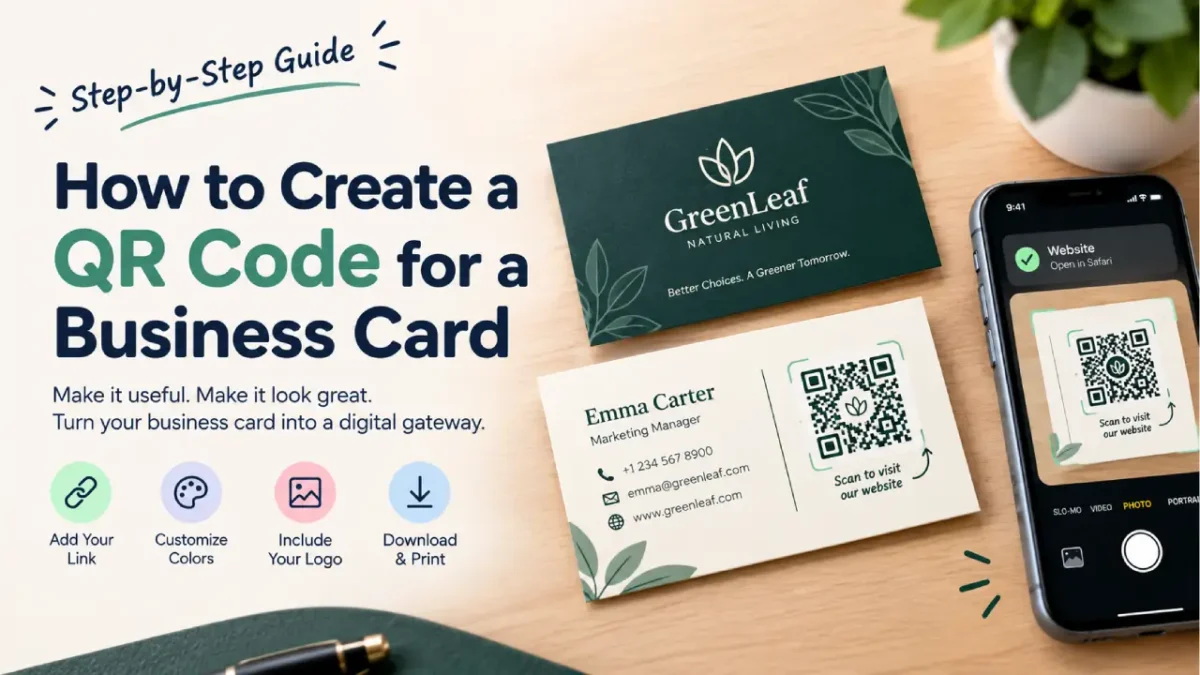
For example, you could put the QR code inside a white or lightly colored card, circle, or rounded rectangle. This lets you keep the overall design interesting without sacrificing the QR code’s readability.
Add a Small Call to Action
A QR code without context can leave people wondering what it does.
A short line of text can help:
Scan to view my portfolio
Scan to save my contact
Scan to visit our website
Scan for my digital card
This is more useful than simply writing “QR Code.”
It tells the person why they should scan it.
Test Before Printing
Never assume a QR code will work just because the generator says it was created successfully.
Test the actual design.
Before printing your business cards, export the final artwork and scan the QR code from the exported file. Then print a sample at the actual business-card size and scan that too.
Check it under normal lighting and from a comfortable distance.
Also make sure the URL is correct and the destination page works properly on a phone.
If you’ve added a logo, unusual colors, or other styling, pay particular attention to the final test.
Where Should You Put the QR Code?
There isn’t one correct position for every business card.
Common options include:
- Back of the card
- Bottom corner
- Next to contact details
- Inside a dedicated QR section
- Centered on a minimalist back design
If the front of the card already contains a lot of information, the back can provide a cleaner location for the QR code.
For minimalist cards, a QR code can also become part of the visual composition.
The important thing is that it remains easy to find and has enough clear space around it.
Use One QR Code for an Updatable Destination
If you’re printing hundreds or thousands of business cards, think about what happens when your website or contact information changes.
Ideally, the QR code should point to a URL that you control and can keep active.
For example, instead of linking directly to a temporary campaign page, you might link to a permanent profile or contact page and update that page whenever your information changes.
That means you can keep using the same printed business card for longer.
Create Your Business Card QR Code
A QR code can be a small part of a business card, but it can add a useful digital connection to a printed design.
Start with a useful destination, create the QR code, customize it to fit your brand, and leave enough space around it. Then test the final design at its actual printed size.
You can create a QR code with your logo using GraphicsGaga and use the finished code on your business card, portfolio card, networking materials, or other printed designs.
The best QR code is one that feels like part of the card while remaining easy for anyone to scan.